Sitecore has released the new version of Stream for PDXP v.1.6.78.
The release includes:
- Validation Rules: AI content generation in the Content Assistant now respects standard Sitecore validation rules assigned to fields. The Media Metadata Extraction dialog now includes a “Validation Rules” checkbox that applies rules defined on the four standard media fields: Title, Description, Alt, and Keywords.
- Item Translation: added support of the General Link and Image field types in addition to text-based fields.
- Content Extraction: added support for JSON (.json) files in addition to jpg, jpeg, png, pdf, txt, and webp.
- Metadata Media Extraction: added support for extraction for a specific item language.
- Bug fixes: Addressed various minor issues to enhance overall stability and performance.
Validation Rules
Sitecore Stream for Platform DXP leverages standard Sitecore Validation Rules to guide AI content generation. This ensures that the content generated by the AI adheres to the specific constraints and requirements defined for your fields.
Validation Rules can be applied in two scenarios:
- Content Assistant – when generating or improving content for content item fields.
- Media Metadata Extraction – when extracting metadata for media items (images).
Content Assistant
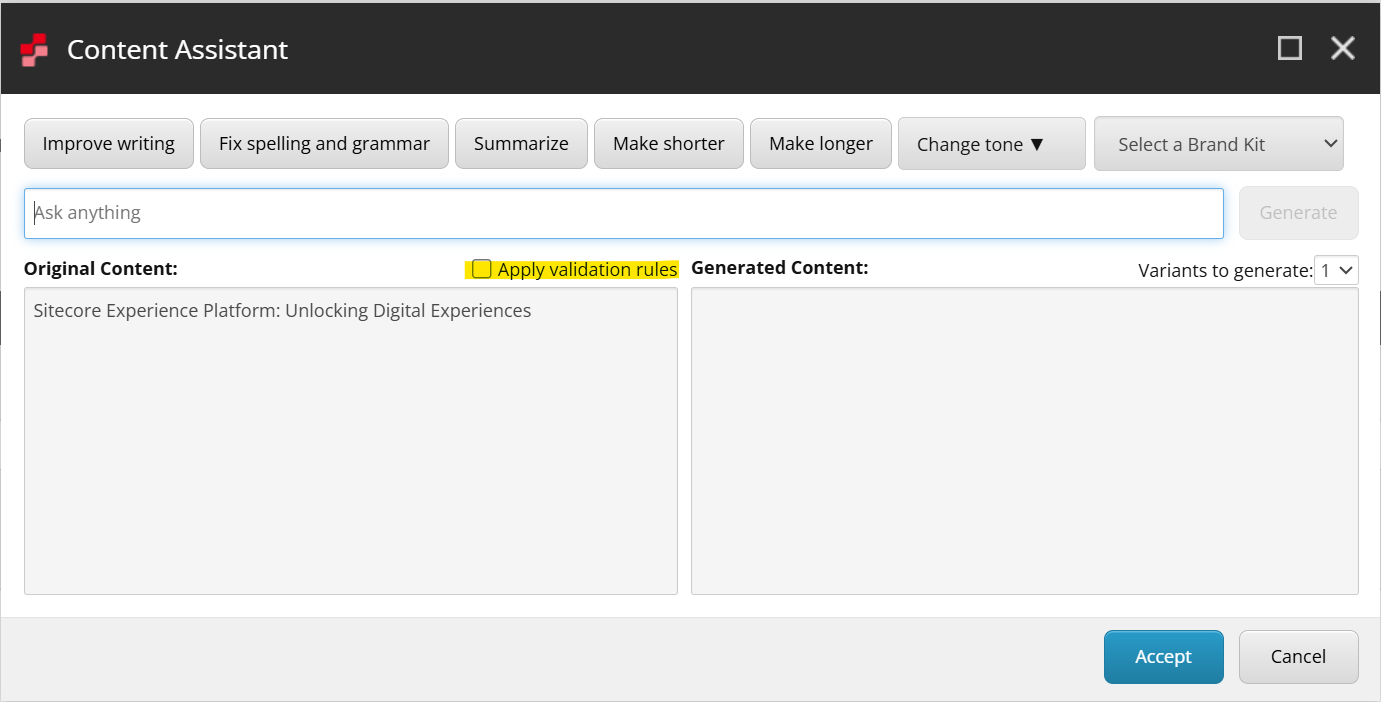
You can find a new checkbox “Apply validation rules“ in the Content Assistant.
How it Works
When you use the Content Assistant to generate or improve content for a field, the module checks the field’s definition item for any assigned validation rules.
It looks for rules assigned in the following fields of the field definition item:
- Quick Action Bar
- Validate Button
- Validator Bar
- Workflow
If rules are found, the Content Assistant extracts the human-readable description from the rule item and adds it to the AI prompt. This provides the AI with context about what is allowed or expected in that field (e.g., “Text must be shorter than 100 characters”, “Must not contain profanity”).
How to Add a New Validation Rule for Content Assistant
To add a new validation rule that the Content Assistant will respect, follow these steps:
- Create the Validation Rule Item:
- Navigate to
/sitecore/system/Settings/Validation Rules/Field Rulesin the Content Editor. - Create a new Validation Rule item (or duplicate an existing one).
- Crucial Step: Fill in the Description or Title field of the validation rule item.
- The Content Assistant prioritizes the Description field.
- If
Descriptionis empty, it uses the Title. - If both are empty, it uses the item Name.
- Tip: Write a clear, natural language description of the constraint (e.g., “The summary must be concise and under 20 words”).
- Navigate to
- Assign the Rule to a Field:
- Open the Template Manager or navigate to the template definition in the Content Editor.
- Select the specific field definition item you want to validate (e.g., the
Titlefield of yourArticletemplate). - Scroll to the Validation Rules section.
- Add your new validation rule to one of the validation fields (e.g., Quick Action Bar or Validate Button).
- Save the item.
Example Scenario
Goal: You want to ensure that the “Teaser” field is always short and catchy.
- Create Rule: You create a validation rule named
Short Teaser Rule.- In the Description field, you write: “Keep the text under 150 characters and use an engaging tone.”
- Assign Rule: You assign this rule to the
Teaserfield on yourNews Articletemplate. - Generate Content:
- A content editor opens a News Article.
- They click the Content Assistant button on the
Teaserfield. - They ask the AI to “Write a teaser about…”
- Result: The AI receives the user’s request plus your validation rule (“Keep the text under 150 characters…”). The generated teaser will be short and engaging, respecting your rule.
Media Metadata Extraction
How it Works
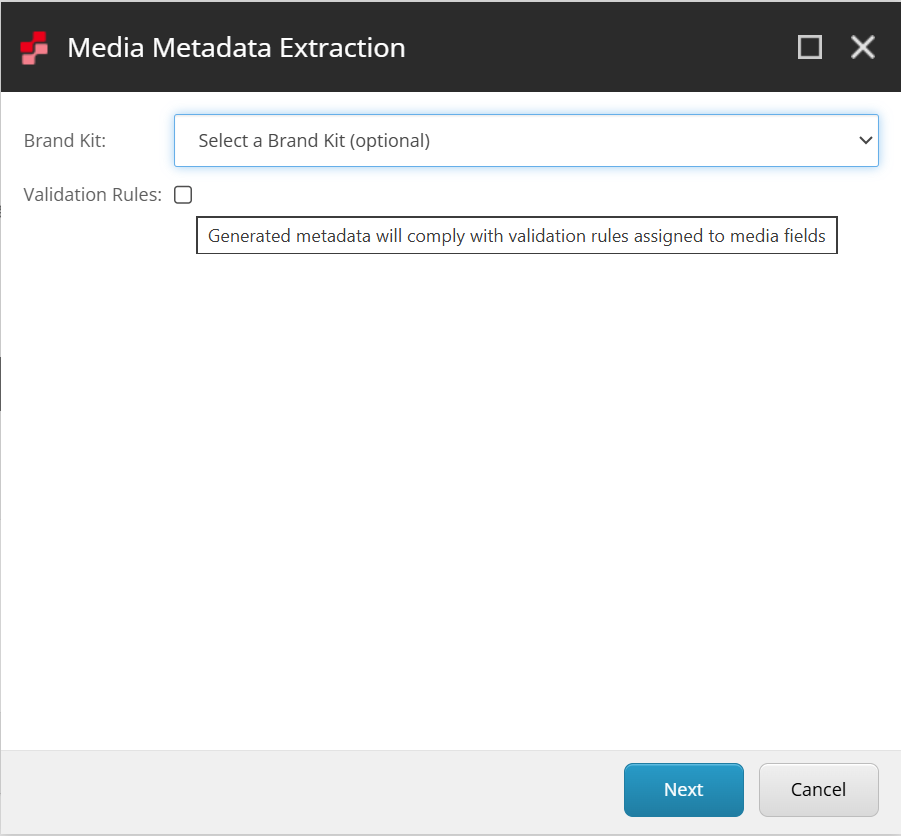
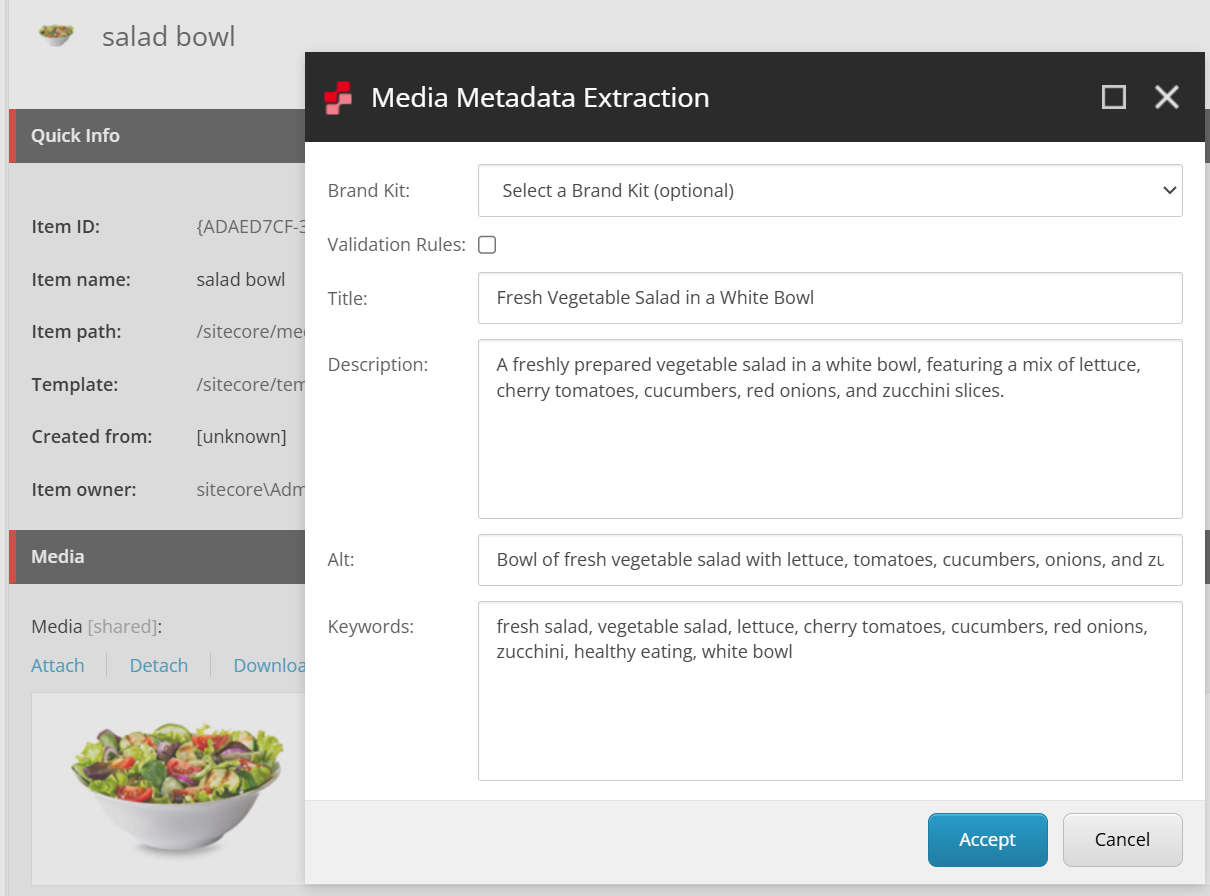
When you use the Media Metadata Extraction feature to generate metadata for media items (images), you can enable the “Validation Rules” checkbox. If enabled, the module checks the validation rules assigned to the four media field definitions:
- Title – The media item title
- Description – Detailed description of the image
- Alt – Alternative text for accessibility
- Keywords – Searchable keywords/tags
The system retrieves validation rules from the same rule fields as Content Assistant:
- Quick Action Bar
- Validate Button
- Validator Bar
- Workflow
If rules are found for any of these fields, they are automatically included in the AI prompt for that specific field. This ensures the generated metadata complies with your organization’s standards (e.g., “Alt text must be descriptive and under 125 characters”, “Keywords should be SEO-friendly and relevant to the image content”).
Supported Media Fields
The Media Metadata Extraction feature applies validation rules to these four standard Sitecore media fields:
| Field Name | Purpose | Example Rule |
|---|---|---|
| Title | Concise image title | “Keep titles under 60 characters and use title case” |
| Description | Detailed image description | “Include key visual elements and context, maximum 300 characters” |
| Alt | Accessibility alternative text | “Describe the image for screen readers, focus on content not style” |
| Keywords | Search and categorization tags | “Use 3-7 relevant keywords, include product name if applicable” |
How to Add Validation Rules for Media Fields
To add validation rules that will guide AI-generated media metadata:
- Create the Validation Rule Item (if not already created):
- Navigate to
/sitecore/system/Settings/Validation Rules/Field Rulesin the Content Editor. - Create a new Validation Rule item (or duplicate an existing one).
- Crucial Step: Fill in the Description or Title field with clear guidance.
- Prioritizes: Description → Title → Name
- Tip: Write specific guidance for media content (e.g., “Alt text should focus on image content and context, not decorative elements”).
- Navigate to
- Assign the Rule to Media Field Definitions:
- Navigate to
/sitecore/templates/System/Media/Unversioned/Imagein the Content Editor. - Select the field definition you want to validate (e.g.,
Alt,Title,Description, orKeywords). - Scroll to the Validation Rules section.
- Add your validation rule to one of the validation fields (e.g., Quick Action Bar or Validate Button).
- Save the item.
- Note: These rules will apply to all media items using the standard Image template.
- Navigate to
Example Scenarios
Scenario 1: Enforcing SEO-Friendly Titles
Goal: Ensure all media titles are optimized for search engines.
- Create Rule: Create a validation rule named
SEO Media Title.- Description: “Title must be under 60 characters, include relevant keywords, and use title case.”
- Assign Rule: Assign to the
Titlefield definition under the Image template. - Extract Metadata:
- Editor selects a media item.
- Opens Media Metadata Extraction dialog.
- Clicks to generate metadata.
- Result: The AI generates a title that is concise, keyword-rich, and properly formatted, following your SEO guidelines.
Scenario 2: Accessibility Compliance for Alt Text
Goal: Ensure all images have descriptive, accessible alternative text.
- Create Rule: Create a validation rule named
Accessible Alt Text.- Description: “Alt text must describe the image content clearly for screen readers. Focus on what is shown, not decorative elements. Keep under 125 characters.”
- Assign Rule: Assign to the
Altfield definition under the Image template. - Extract Metadata:
- Editor uploads a product image.
- Opens Media Metadata Extraction dialog.
- Result: The AI generates accessible alt text that describes the actual content (e.g., “Woman wearing blue running shoes on track” instead of “Image123.jpg”), ensuring WCAG compliance.
Scenario 3: Consistent Keyword Strategy
Goal: Maintain consistent keyword tagging across all media.
- Create Rule: Create a validation rule named
Keyword Guidelines.- Description: “Use 3-7 relevant keywords. Include product category, brand name if visible, and primary subject. Keywords should be lowercase and SEO-friendly.”
- Assign Rule: Assign to the
Keywordsfield definition under the Image template. - Extract Metadata:
- Editor extracts metadata for a product photo.
- Result: The AI generates a focused keyword list (e.g., “running shoes, athletic footwear, blue sneakers, fitness equipment”) that follows your tagging strategy.
Scenario 4: Multiple Rules per Field
You can assign multiple validation rules to a single field. All rule descriptions will be combined and sent to the AI.
Example: For the Description field:
- Rule 1: “Maximum 300 characters”
- Rule 2: “Include primary subject, setting, and any visible text or branding”
- Rule 3: “Use formal, professional tone”
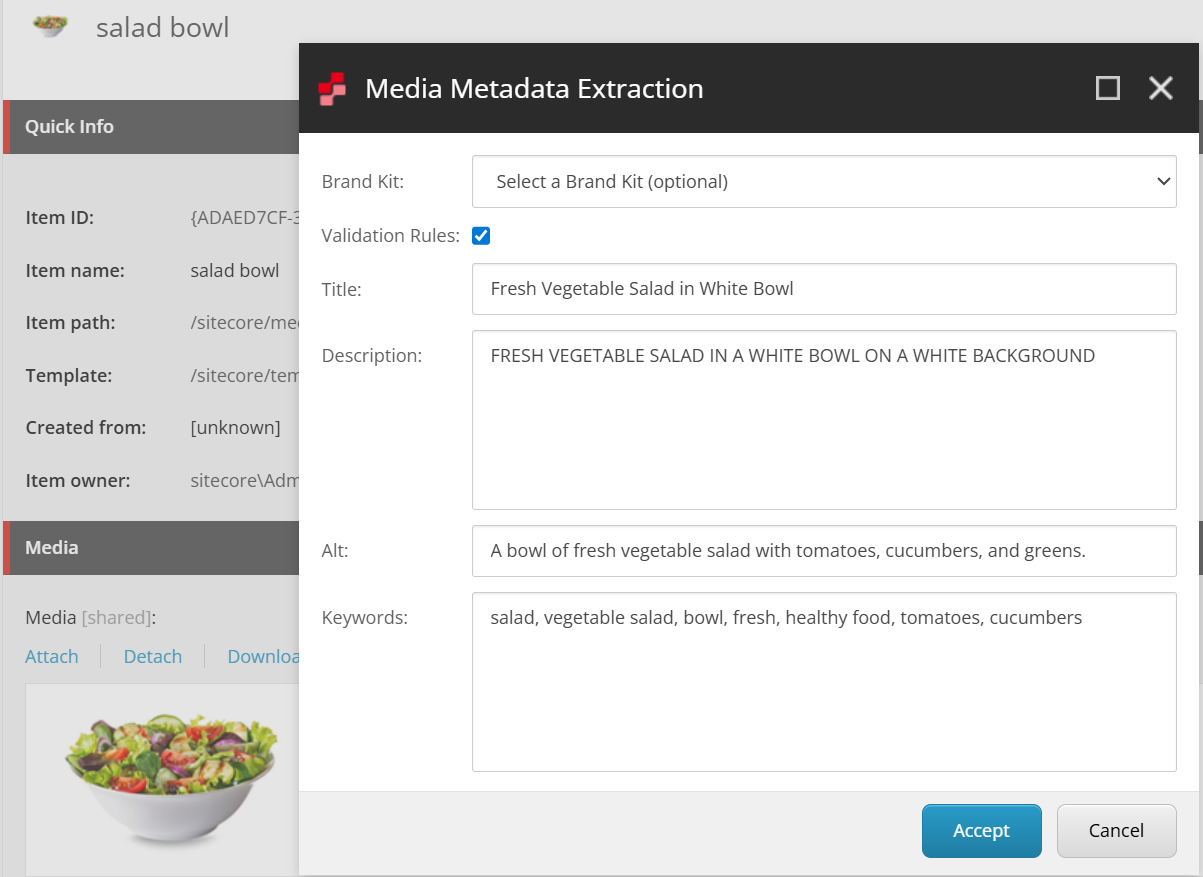
- Rule 4: “Must be Upper Case”
When metadata is extracted, all three rules guide the AI to generate descriptions that are concise, comprehensive, and professionally written.
Important Notes
- Automatic Application: Unlike Content Assistant where rules apply per content item, media field rules apply to all media items using the standard Image template.
- Field-Specific Rules: Rules are applied individually per field. A rule assigned to
Titlewon’t affectDescriptiongeneration. - Validation vs. Generation: These rules guide AI generation. They don’t enforce validation after generation – editors can still modify the extracted metadata.
- Same Rules, Different Contexts: You can use the same validation rule for both Content Assistant and Media Extraction if the constraint applies to both scenarios.

 Ivan's Blog