During the Winter Launch 2025, Sitecore has released the Sitecore Stream for Platform DXP. Now you can use the new functionality to enhance your Sitecore experience with AI capabilities.
Agenda
- Download the package.
- Package content.
- Content Generation.
- Scenarios.
- Launchpad.
Download the package
If you have the necessary subscription, you can download a package from the Helpful Links of the Stream app.

Package Content
After you downloaded the package, extract it and you’ll find the docs folder and the SitecorePackage.zip

The docs folder contains the:
- readme.md – this guide will help you understand how to set up and use the functionality to enhance your Sitecore experience with AI capabilities.
- faq.md – frequently asked questions.
- config.md – detailed documentation of the new configuration.
- install.md – detailed documentation on how to install the module.
- uninstall.md – instructions on how to uninstall the module automatically or manually.
- issues.md – known issues that do not affect the functionality but will be fixed in the next releases.
Content Generation
When the Sitecore Stream for Platform DXP is installed and configured, you’ll discover the new red stars button beside the Single-Line Text, Multi-Line Text and Rich Text fields:

Click on the button and a new dialog will pop up:

In the dialog, you can find the hot buttons like Improve Writing, Fix Spelling and Grammar, Make Shorter, Make Longer, and Change Tones to Formal, Casual, Bold, Informative, Friendly.
Also, the dialog contains the prompt where you can generate content and 2 textboxes as Original Content and Generated Content. The Original Content has the value from the field that has been opened, and the Generated Content will have generated or modified content.
It’s worth mentioning that when you generate content, the Sitecore Stream AI takes into account the field type and field name (which can be Title, Description, Short Description, etc.).
Scenarios
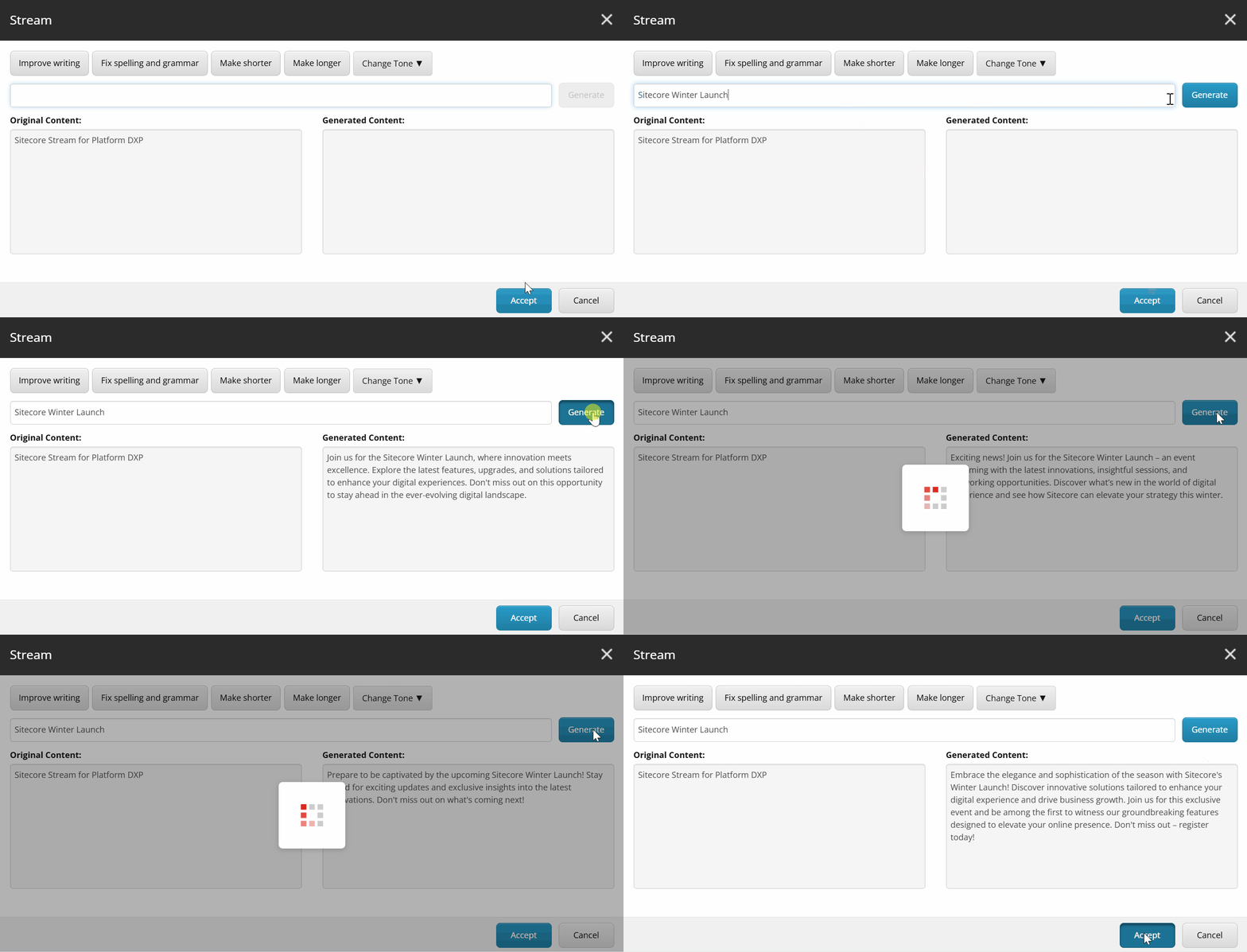
- Make Longer of existing content:

2. Prompt and use the original content as context. If you have a content, you still can prompt and then the Sitecore Stream will take into account the both values to generate a new content. You can click the Generate button as many times as needed to see different variants.
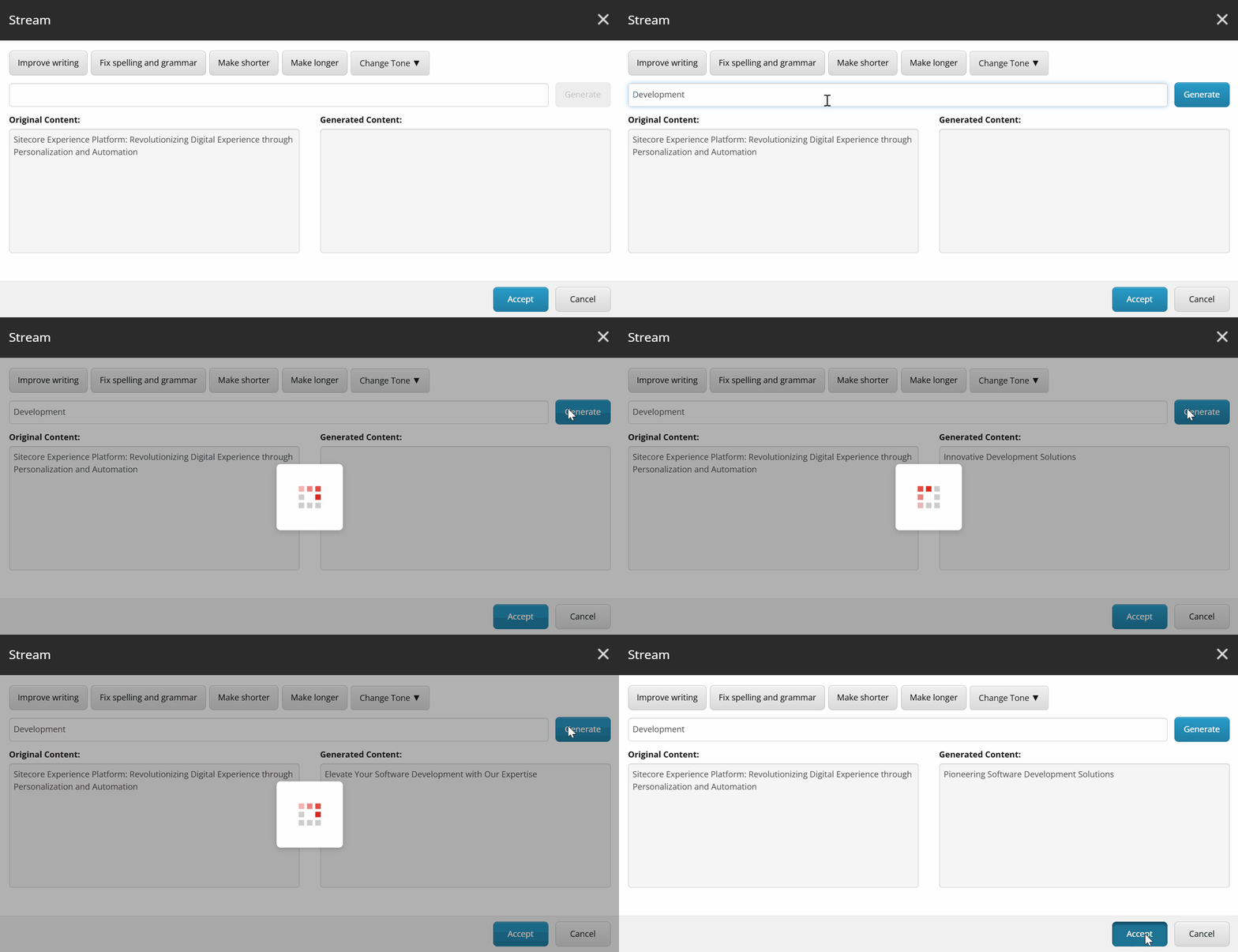
3. Prompt from scratch. Just prompt and click the Generate button.

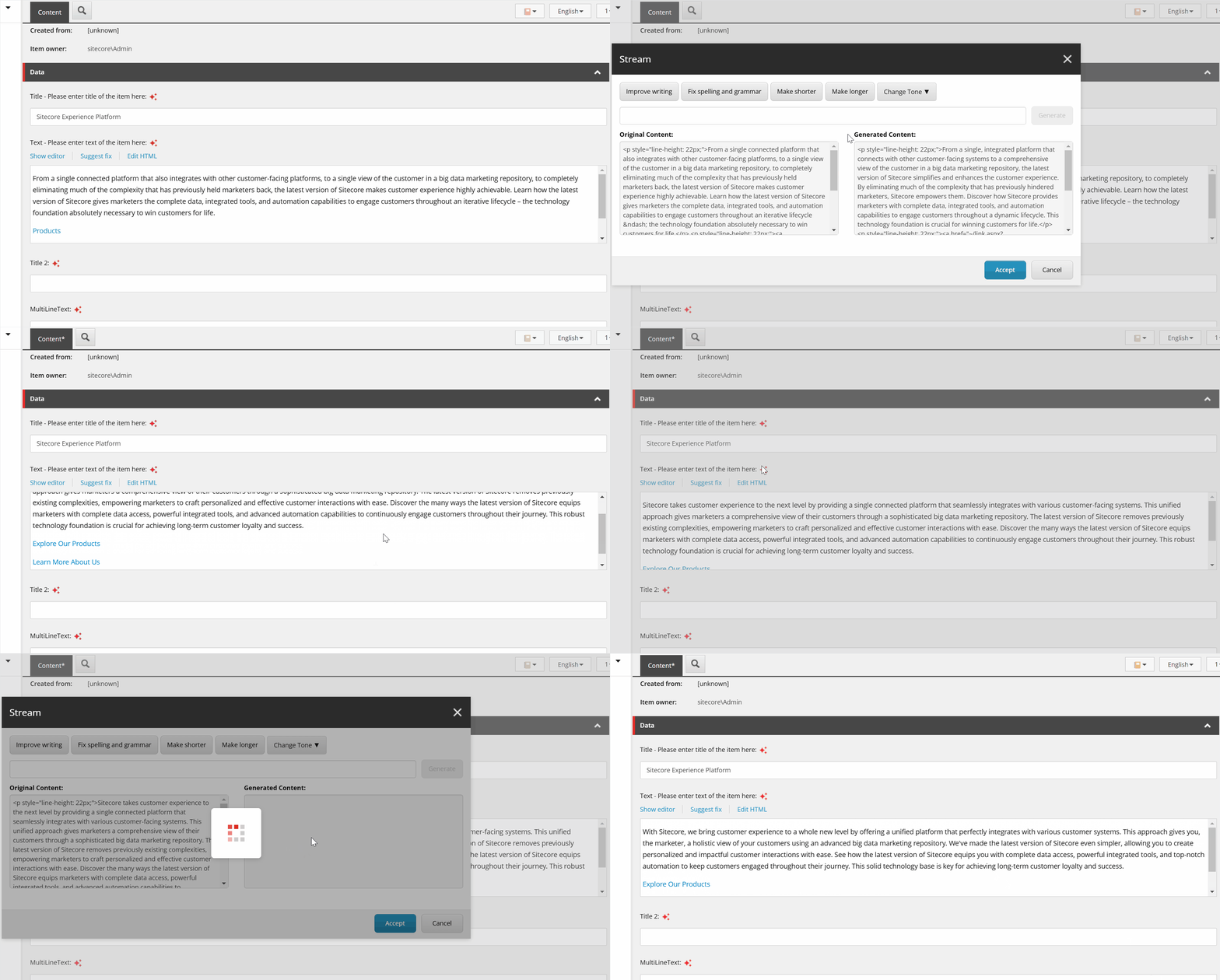
4. Rich Text From Content Editor. It takes the markup and keeps it; the Stream does not lose URLs or images.
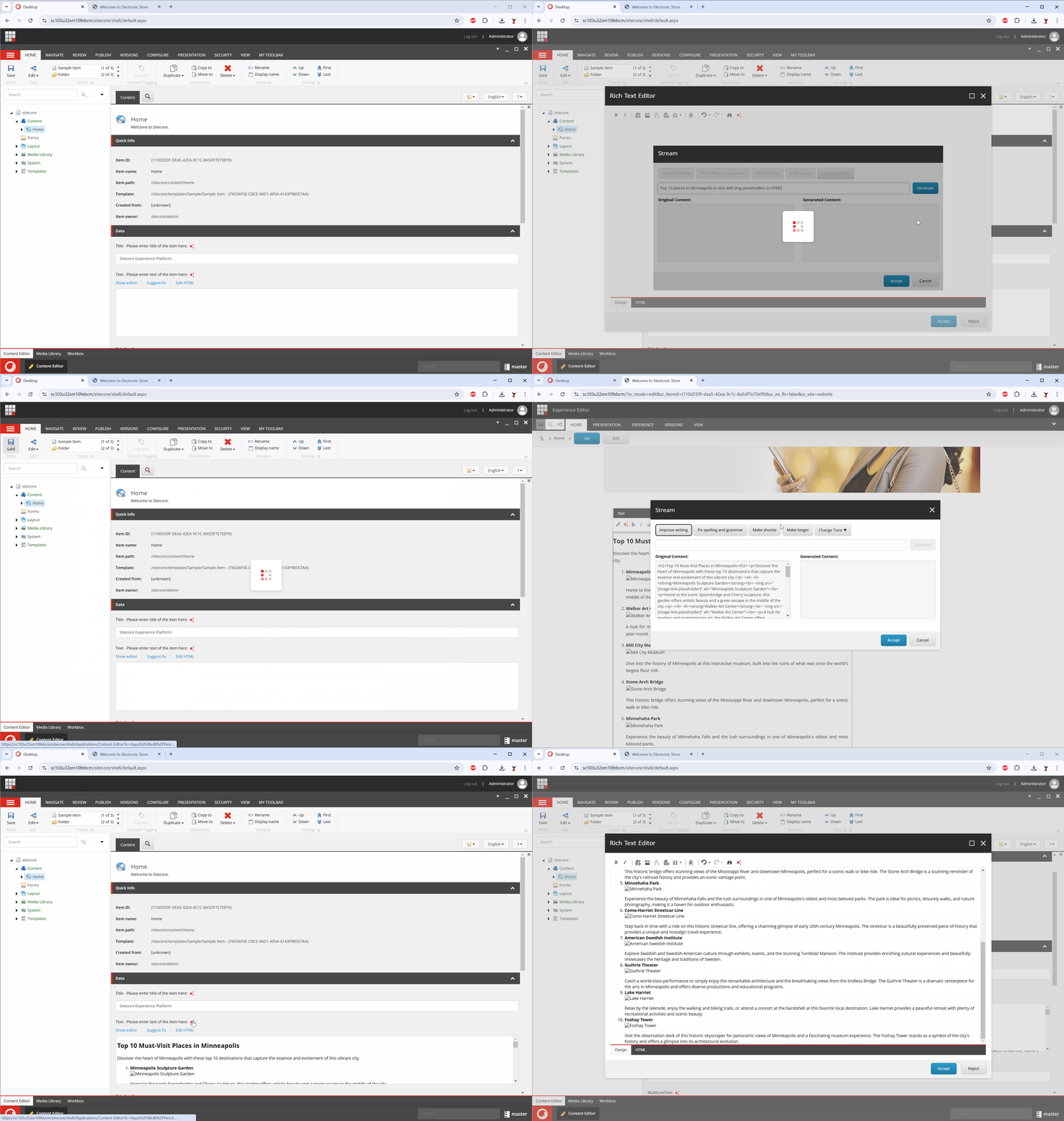
5. Rich Text – Long Generated Content and displaying in Experience Editor.
Launchpad
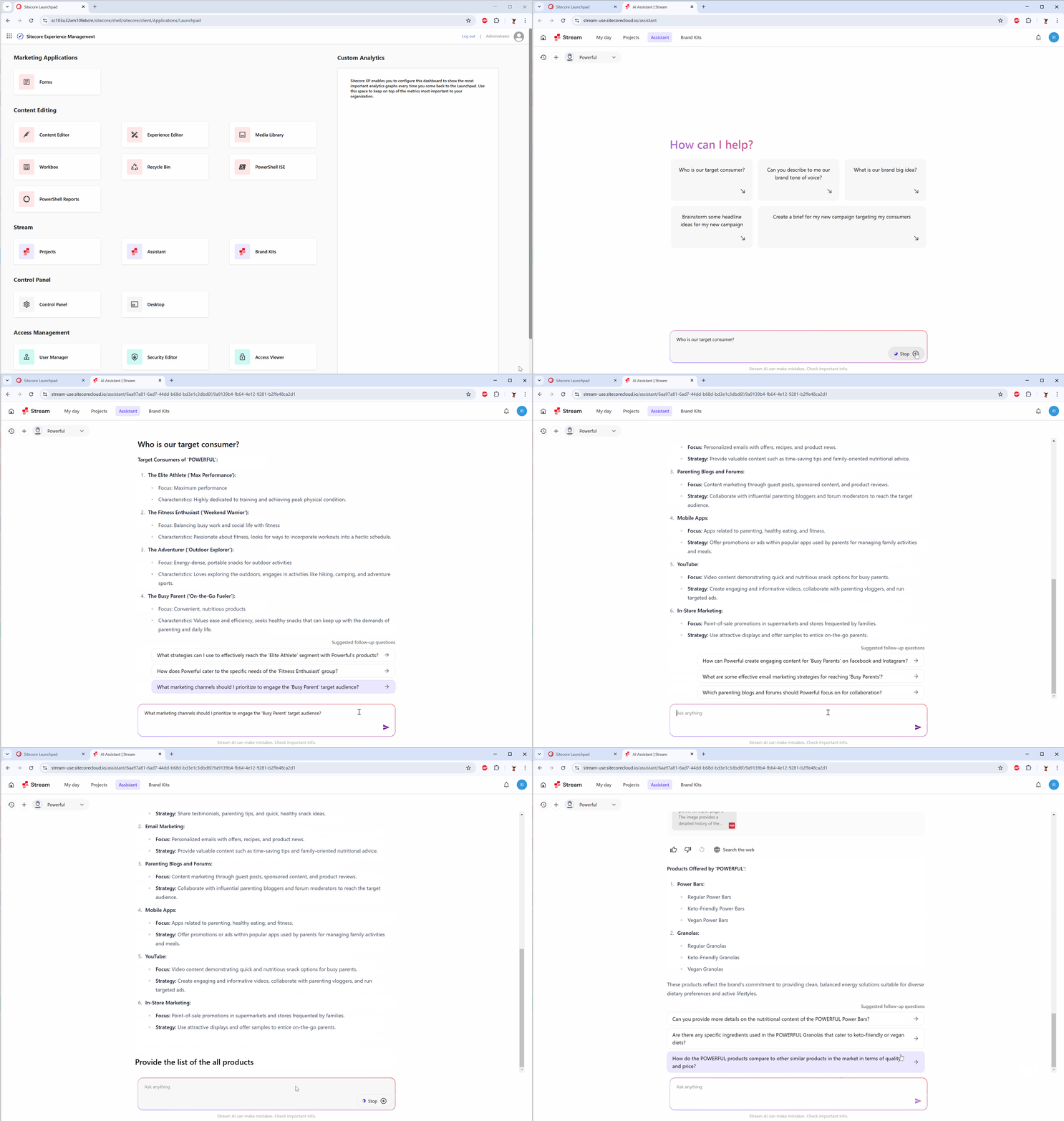
Launchpad also got a new applications like Projects, Assistant and Brand Kits.

Open one of the Application, e.g. Assistant and you’ll be redirected to the Stream Portal:
Conclusion
With the Sitecore Stream for Platform DXP, content editors can generate or adjust content within seconds. The functionality is available in the Content Editor and Experience Editor.
Useful Links
- https://www.sitecore.com/products/sitecore-stream
- https://doc.sitecore.com/xp/en/users/104/sitecore-experience-platform/overview-of-the-sitecore-launchpad.html
- https://doc.sitecore.com/xp/en/users/104/sitecore-experience-platform/ai-in-experience-platform.html
- https://doc.sitecore.com/xp/en/users/104/sitecore-experience-platform/ai-assisted-content-generation.html
- https://developers.sitecore.com/downloads/Sitecore_Stream_for_Platform_DXP

 Ivan's Blog
2 thoughts on “Sitecore Stream for Platform DXP”