The Sitecore Stream module lets you generate content, extract data from documents and media, translate items, and more. Behind every AI action is a request to the Sitecore Stream Cloud API. Does Sitecore track how many interactions your organization uses? Yes, and in this post, I’ll break down exactly how interaction counting works under the hood.
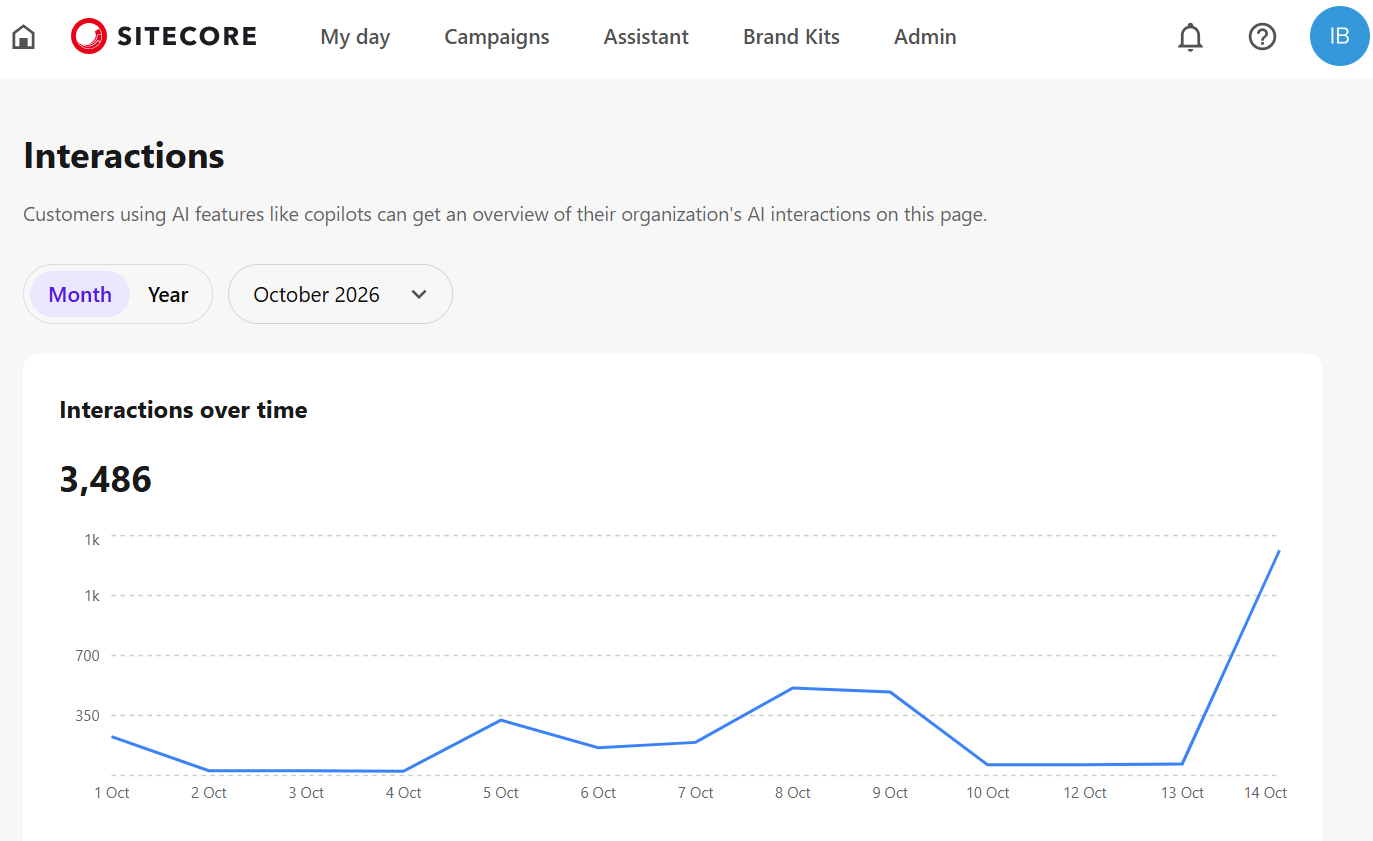
Below is the Interactions dashboard, which was recently added to the Sitecore Stream web app. You can view your organization’s usage at https://stream-{region}.sitecorecloud.io/interactions (for example, https://stream-use.sitecorecloud.io/interactions for the US East region):
How Sitecore Stream Interactions Are Calculated
In Sitecore Stream, 1 interaction equals 1 AI request processed by the Stream Cloud API, rather than a single dialog session or button click in the Sitecore UI.
Every time the Sitecore CM server calls a Stream AI generation or extraction endpoint, the Stream Cloud API increments your interaction count by 1. Local Sitecore actions, such as opening a dialog, scanning a content tree, or saving already-generated text into a field – do not consume interactions.
Interaction Breakdown Across All Stream Dialogs
| Stream Dialog | User Action in Sitecore | How It Works Under the Hood | Interactions Counted |
|---|---|---|---|
|
Content Assistant Free & Premium |
Click Generate, Improve Writing, Fix Spelling & Grammar, Make Shorter, Make Longer, Summarize, or any Change Tone button (Formal, Casual, Bold, Informative, Friendly) |
Sends 1 request per AI action click (writing-assistant).
|
1 interaction per AI button click (regardless of 1-5 variants) |
|
Content Extraction (Create Item from File, URL, or Text) Free & Premium |
Select a template, provide input (upload file(s), enter up to 5 URLs, or paste text), and click OK |
Bundles all uploaded files/URLs/text and all extractable template fields into 1 single API request (content-structure) and creates the Sitecore item.
|
1 interaction per item creation (even with multiple files/URLs) |
|
Media Metadata Extraction (Title, Description, Alt, Keywords) Free & Premium |
|
Extracts all 4 metadata fields (Title, Description, Alt, Keywords) in 1 API request (media-metadata).
|
1 interaction per generation (+1 if regenerated on preview) |
|
Item Translation Free & Premium |
Select Source/Target language, pick fields to translate, and click Translate |
Sends all selected translatable fields of that item in 1 single API request (item-translation). Translating 1 field or 20 fields on the same item still costs 1 interaction.
|
1 interaction per item |
|
Page Translation Premium |
Click Translate on a page |
Scans the page and its linked datasource/template dependencies, then runs a background job that sends 1 API request per actionable item (bulk-translation).
|
N interactions(1 per translated item) |
|
Tree Translation Premium |
Click Translate on a content tree |
Scans the root item and all descendants (up to 200 actionable items by default), then runs a background job that sends 1 API request per actionable item (bulk-translation).
|
N interactions(1 per translated item) |
Actions That Cost 0 Interactions
The following actions happen either in the local Sitecore database or against non-AI endpoints, so they never increment your interaction counter:
- Clicking “View Details” or changing Source/Target languages in the Item, Page, or Tree Translation dialogs (discovery runs locally in Sitecore).
- Skipped items during Page or Tree Translation:
- Structural items (such as folders with no translatable fields).
- Items whose target language version is already up to date (target
__Updatedtimestamp is newer than or equal to the source). - Items where the user lacks Sitecore write access.
- Loading Brand Kits in dropdowns (fetches Brand Kit metadata, not an AI generation call).
- Switching between Variant 1–5 tabs in Content Assistant after generation.
- Clicking Cancel before triggering an AI action (note: if you click Cancel after an AI response was already generated in Content Assistant or Media Metadata Extraction, the AI request already occurred and counts as 1 interaction).
Why Bulk Translations (Page & Tree) Are Counted Per Item
A common question is: “Why does translating a content tree of 100 items count as 100 interactions instead of 1?”
- Cloud-Side Metering & Proportional Usage: Interactions are metered by the Stream Cloud API per AI execution, not by the local Sitecore UI. Because a single Tree Translation can process 200 items at once, counting per item ensures that usage reflects the actual volume of content processed (translating 1 item vs. 200 items), rather than treating an entire site tree the same as a single item.
- Technical & Payload Constraints: A single Sitecore item can contain dozens of fields, including large Rich Text fields. Sending an entire content tree in one giant HTTP payload would exceed LLM token/payload limits, risk HTTP timeouts, and cause the entire batch to fail if a single item encountered an issue. Processing one item per API request inside a Sitecore background job guarantees reliability and item-by-item progress tracking.
- Upfront Visibility Before You Translate: Before starting a Page or Tree Translation, the dialog displays the exact “Items to translate” count (and clicking View Details lists every included and skipped item). That number tells you in advance exactly how many Stream interactions the translation job will consume.


